> ## Documentation Index
> Fetch the complete documentation index at: https://developers.partoo.co/llms.txt
> Use this file to discover all available pages before exploring further.
# Categories
> Learn how to effectively use and manage business categories to improve your local search visibility and connect with customers.
Categories are essential identifiers that describe your business and help customers find you when searching for specific services. They play a crucial role in local search rankings and determine which attributes, services, menus, and place action links are available for your business listings.
Categories are one of the key factors that affect your business's local
ranking on Google and other directories. Choose them carefully to maximize
your visibility.
## Understanding Categories
### What Are Business Categories?
Business categories are standardized labels that describe what your business does. They help search engines and directory platforms understand your business type and connect you with relevant customer searches.
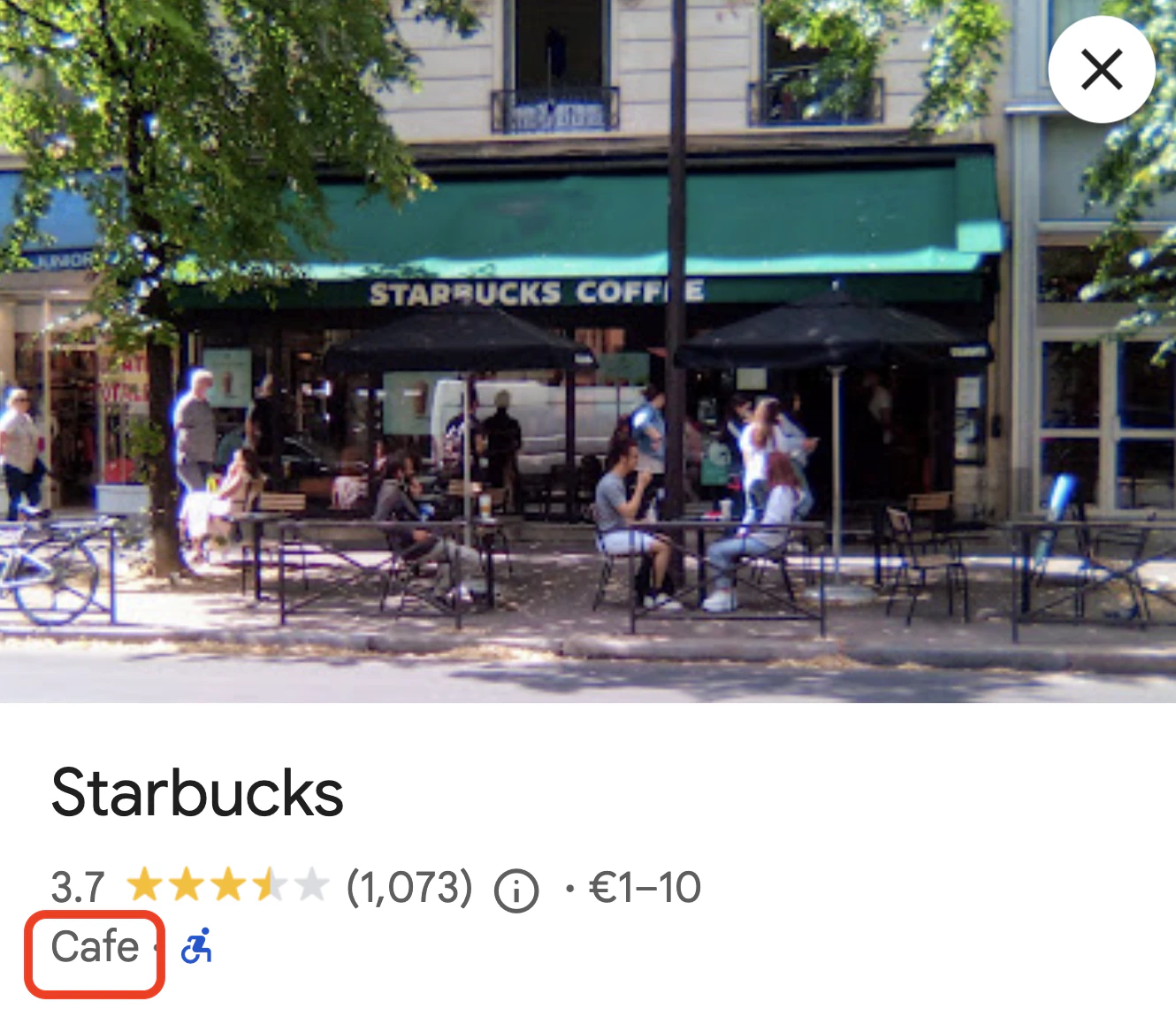 ### Why Categories Matter
* **Local search ranking**: Categories directly influence how well your business ranks in local search results
* **Data availability**: Your selected categories determine which Google Business Profile attributes, services, menus, and place action links you can use
* **Customer discovery**: Well-chosen categories help customers find your business when searching for specific services
## Category Standards
### Google Business Profile as the Source
Partoo uses Google Business Profile as the single source of truth for categories. This approach ensures:
* **Relevance**: Google leverages search data to build the most comprehensive category catalog
* **Completeness**: If a category exists on Google Business Profile, it's available in Partoo
### Automatic Synchronization
Our category catalog stays current through daily synchronization with Google Business Profile:
* **New categories**: Automatically added when Google creates them
* **Removed categories**: Marked as obsolete when Google removes them
* **Updated names**: Category names are updated to match Google's changes
## Category Selection Best Practices
### Recommended Approach
Your primary category (first in the list) is the most important. Select the most specific category that accurately describes your core business.
Note that your choice of primary category will also affect what *Attributes*, *Services*, *Menu options*, and *Place Action Links* are available for your business. These are additional details that help customers learn more about your business, such as `Wi-Fi available` or `Outdoor seating` for attributes, specific services you offer, the possibility to add a food menu, or actionable links like `Order Online`.
The reason for this is that for certain categories, certain options are more relevant than others. For example, a `Coffee Shop` might have attributes related to seating options and the possibility of adding a menu, while a `Plumber` would have attributes related to service areas and specific services offered.
When you select a specific category like "Pizza Restaurant," your business will also appear in searches for broader related categories like "Restaurant."
Include up to 10 categories total, but focus on quality over quantity. Each
additional category should represent a genuine service or product you offer.
Order matters for your additional categories since different platforms have
varying limits - some only use your first 3-4 categories. List your most
important additional categories first to ensure they're included across all
platforms.
Adding irrelevant categories can hurt your local SEO performance.
For each category, ask yourself: "If customers search for this category and find my business, will they click?" If the answer is no, don't use that category.
### Category Limits by Platform
While Google accepts up to 10 categories, other platforms have different limits:
* **Google Business Profile**: Up to 10 categories
* **Facebook**: First 4 categories only
* **Hoodspot**: First 3 categories only
* **Apple**: Primary category only
* **Le118000**: Primary category only
We recommend defining at least 5 relevant categories to maximize visibility
while maintaining quality.
## Category Mapping
### Publisher-Specific Mappings
Each publisher platform has its own category system. We maintain mappings between Google Business Profile categories and equivalent categories on other platforms.
### Missing Mappings
Occasionally, new categories may not have mappings for all publishers. We continuously monitor for these gaps and work to establish appropriate mappings as quickly as possible.
## Updating Categories for Your Businesses
You can easily manage your business categories through the Partoo web application. The interface provides suggestions and allows you to add multiple categories to optimize your local search visibility.
### Accessing the Categories Section
From your dashboard, select the business you want to update categories for. You'll see the Business Edit page where you can update your business data, including categories.
### Why Categories Matter
* **Local search ranking**: Categories directly influence how well your business ranks in local search results
* **Data availability**: Your selected categories determine which Google Business Profile attributes, services, menus, and place action links you can use
* **Customer discovery**: Well-chosen categories help customers find your business when searching for specific services
## Category Standards
### Google Business Profile as the Source
Partoo uses Google Business Profile as the single source of truth for categories. This approach ensures:
* **Relevance**: Google leverages search data to build the most comprehensive category catalog
* **Completeness**: If a category exists on Google Business Profile, it's available in Partoo
### Automatic Synchronization
Our category catalog stays current through daily synchronization with Google Business Profile:
* **New categories**: Automatically added when Google creates them
* **Removed categories**: Marked as obsolete when Google removes them
* **Updated names**: Category names are updated to match Google's changes
## Category Selection Best Practices
### Recommended Approach
Your primary category (first in the list) is the most important. Select the most specific category that accurately describes your core business.
Note that your choice of primary category will also affect what *Attributes*, *Services*, *Menu options*, and *Place Action Links* are available for your business. These are additional details that help customers learn more about your business, such as `Wi-Fi available` or `Outdoor seating` for attributes, specific services you offer, the possibility to add a food menu, or actionable links like `Order Online`.
The reason for this is that for certain categories, certain options are more relevant than others. For example, a `Coffee Shop` might have attributes related to seating options and the possibility of adding a menu, while a `Plumber` would have attributes related to service areas and specific services offered.
When you select a specific category like "Pizza Restaurant," your business will also appear in searches for broader related categories like "Restaurant."
Include up to 10 categories total, but focus on quality over quantity. Each
additional category should represent a genuine service or product you offer.
Order matters for your additional categories since different platforms have
varying limits - some only use your first 3-4 categories. List your most
important additional categories first to ensure they're included across all
platforms.
Adding irrelevant categories can hurt your local SEO performance.
For each category, ask yourself: "If customers search for this category and find my business, will they click?" If the answer is no, don't use that category.
### Category Limits by Platform
While Google accepts up to 10 categories, other platforms have different limits:
* **Google Business Profile**: Up to 10 categories
* **Facebook**: First 4 categories only
* **Hoodspot**: First 3 categories only
* **Apple**: Primary category only
* **Le118000**: Primary category only
We recommend defining at least 5 relevant categories to maximize visibility
while maintaining quality.
## Category Mapping
### Publisher-Specific Mappings
Each publisher platform has its own category system. We maintain mappings between Google Business Profile categories and equivalent categories on other platforms.
### Missing Mappings
Occasionally, new categories may not have mappings for all publishers. We continuously monitor for these gaps and work to establish appropriate mappings as quickly as possible.
## Updating Categories for Your Businesses
You can easily manage your business categories through the Partoo web application. The interface provides suggestions and allows you to add multiple categories to optimize your local search visibility.
### Accessing the Categories Section
From your dashboard, select the business you want to update categories for. You'll see the Business Edit page where you can update your business data, including categories.
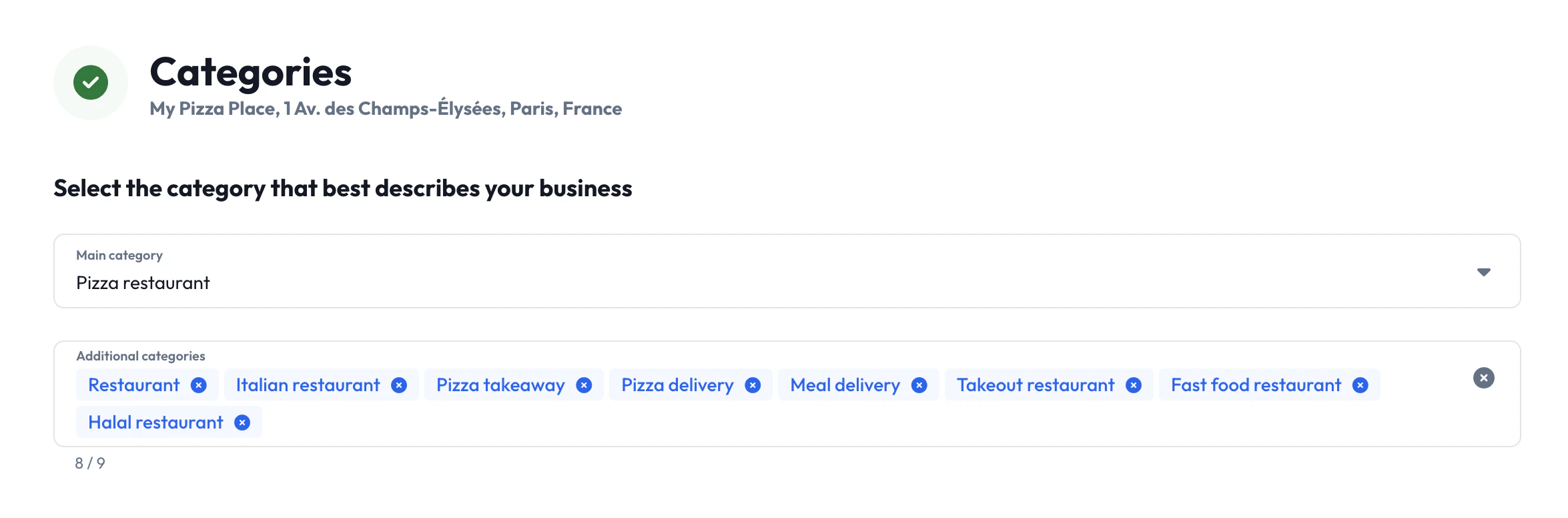
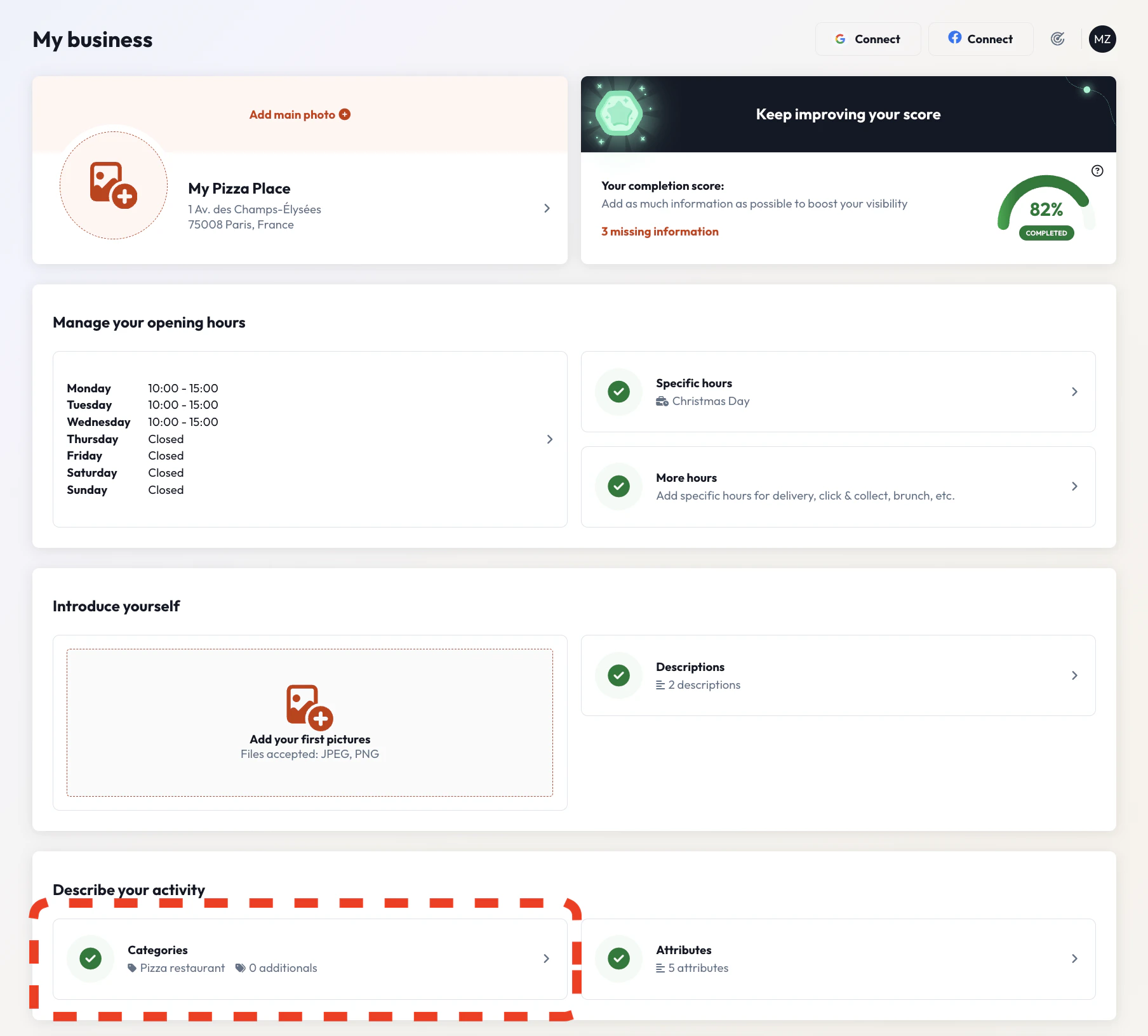 In the "Describe your activity" section, you'll see the Categories option. This section shows your current primary category and allows you to add additional categories.
The green checkmark indicates that you have at least one category configured for your business.
### Adding and Managing Categories
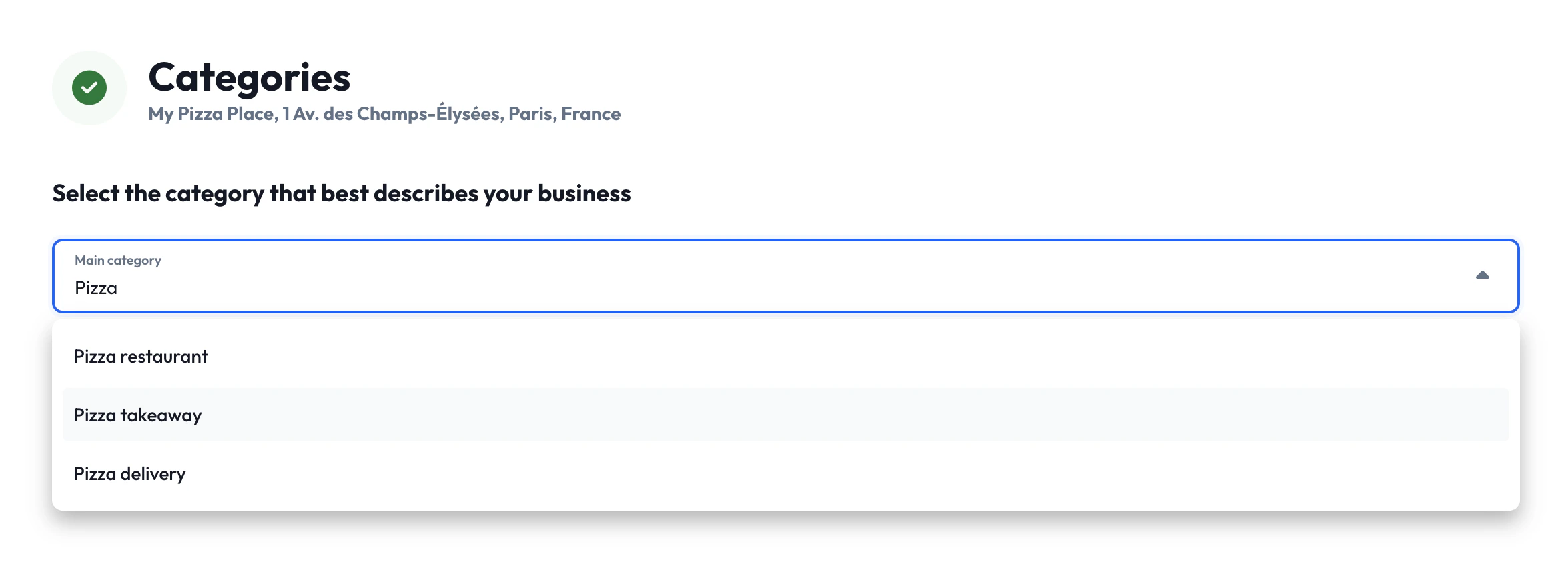
Choose the main category that best describes your business from the dropdown menu. This will be your most important category for search rankings.
In the "Describe your activity" section, you'll see the Categories option. This section shows your current primary category and allows you to add additional categories.
The green checkmark indicates that you have at least one category configured for your business.
### Adding and Managing Categories
Choose the main category that best describes your business from the dropdown menu. This will be your most important category for search rankings.
 In the "Additional categories" field, you can search for and add additional
categories that represent other services or aspects of your business.
In the "Additional categories" field, you can search for and add additional
categories that represent other services or aspects of your business.
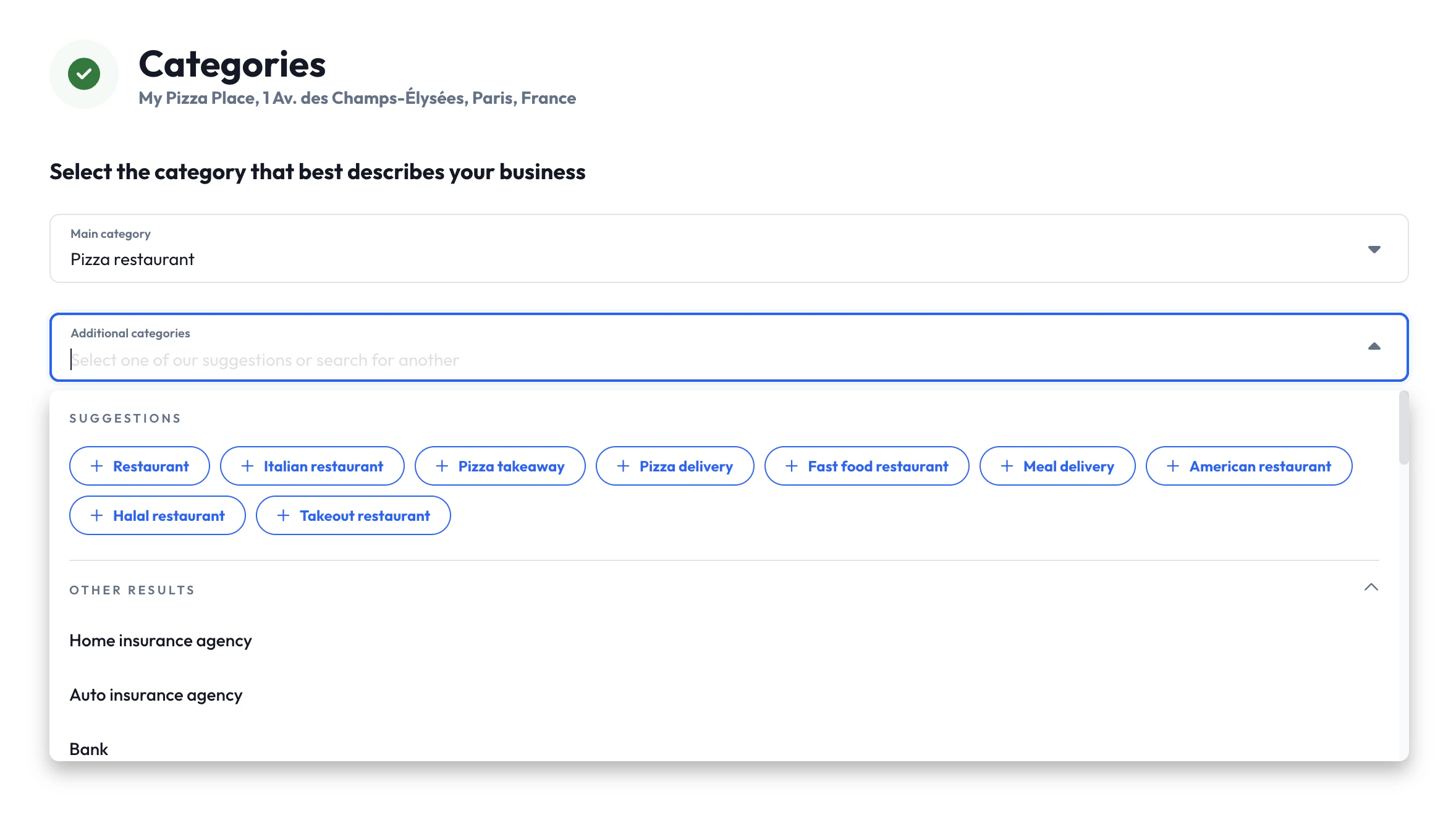 The interface provides intelligent suggestions to help you find relevant
additional categories. These suggestions come from analyzing category
combinations across all businesses on the Partoo platform. For example,
*Pizza restaurant* businesses commonly also use *Pizza delivery*, *Pizza
takeaway*, and *Italian restaurant*.
As you add categories, they appear as tags that you can easily remove by
clicking the "×" button if needed. The interface shows a counter (e.g., "8/9")
indicating how many categories you've selected out of the maximum allowed.
The interface provides intelligent suggestions to help you find relevant
additional categories. These suggestions come from analyzing category
combinations across all businesses on the Partoo platform. For example,
*Pizza restaurant* businesses commonly also use *Pizza delivery*, *Pizza
takeaway*, and *Italian restaurant*.
As you add categories, they appear as tags that you can easily remove by
clicking the "×" button if needed. The interface shows a counter (e.g., "8/9")
indicating how many categories you've selected out of the maximum allowed.
 Remember that quality is more important than quantity. Choose only
categories that genuinely represent your business offerings.
After selecting your categories, save your changes to update your business profile across all connected platforms.
### Using the REST API to Manage Categories
You can programmatically manage business categories through our REST API. The following endpoints provide complete category management functionality:
#### Category Discovery Endpoints
| Method | Name | Endpoint | Description |
| ------ | ------------------------ | ------------------------------------------------------------------------------------------------------------- | ------------------------------------------------------------------- |
| `GET` | List categories | **[/api/v2/categories](/api-reference/categories/list-partoo-categories)** | List and filter through all available Partoo categories |
| `GET` | Get category | **[/api/v2/categories/\{category\_id}](/api-reference/categories/category-information)** | Retrieve detailed information about a specific category |
| `GET` | Get suggested categories | **[/api/v2/categories/\{category\_id}/suggested](/api-reference/categories/suggested-additional-categories)** | Get recommended additional categories based on an existing category |
#### Business Management Endpoints
| Method | Name | Endpoint | Description |
| ------ | --------------- | ----------------------------------------------------------------------------------- | ----------------------------------------------------- |
| `POST` | Create business | **[/api/v2/businesses](/api-reference/businesses/create-business)** | Create a new business with categories |
| `POST` | Update business | **[/api/v2/businesses/\{business\_id}](/api-reference/businesses/update-business)** | Update an existing business, including its categories |
#### Complete Workflow Example
Here is how you can use these endpoints together to implement a complete category management workflow:
Start by retrieving the available categories to present options to your users:
```http theme={null}
GET /api/v2/categories?search=restaurant&limit=20
```
This helps users find relevant categories by searching or browsing the complete catalog.
Once a user selects a primary category, get intelligent suggestions for
additional categories:
```http theme={null}
GET /api/v2/categories/{primary_category_id}/suggested
```
These suggestions are based on the most commonly used
additional categories by businesses with the same primary category.
Apply the selected categories to a business using either endpoint:
**For new businesses:**
```json theme={null}
POST /api/v2/businesses
{
"name": "My Pizza Place",
"categories": [
# The first category of the array is always the primary category
"gcid:pizza_restaurant",
# Additional categories
"gcid:italian_restaurant",
"gcid:pizza_delivery_service"
],
// ... other business data
}
```
**For existing businesses:**
```json theme={null}
POST /api/v2/businesses/{business_id}
{
"categories": [
"gcid:pizza_restaurant",
"gcid:italian_restaurant",
"gcid:pizza_delivery_service",
"gcid:pizza_takeout_service"
]
}
```
The first category in the array is treated as the primary category, which
determines available attributes, services, menus, and place action links, and
has the strongest impact on search rankings. Additional categories are treated
as additional categories.
Use the suggestions endpoint to provide the same intelligent category
recommendations in your application that users experience in the Partoo web
interface.
## Frequently Asked Questions
No, we do not accept requests to add custom categories to our catalog. This is to ensure data quality and to prevent the use of invalid categories that could harm your business's search performance.
We recommend 5-10 relevant categories. Your primary category is most
important, followed by additional categories that accurately represent
additional services or products you offer. Adding irrelevant categories can
hurt your local SEO performance.
Google Business Profile's category directory is comprehensive and should
contain relevant options for any business type. Try searching for broader
terms or synonyms if specific terms don't yield results.
Your primary category determines which Google Business Profile attributes,
services, menus, and place action links are available. Consider if a different
primary category would unlock the needed data options for your business.
No, different publishers have varying category limits and systems. While
Google accepts up to 10 categories, other platforms may only use your primary
category or the first few categories from your list.
We continuously monitor for category changes from Google Business Profile. Here's what happens when Google removes a category:
**Immediate Impact:**
* The category is automatically marked as obsolete in our system
* Updates to your Google Business Profile listing may temporarily fail
**Our Response:**
* Our team actively works to identify the most appropriate alternative category
* We assign the replacement category to restore full functionality as quickly as possible
* The obsolete category is replaced with the new one for all affected businesses still using the old, obsolete category
We apologize for any inconvenience this may cause. The obsoletion of categories is caused by changes outside of our control, as we strive to always maintain accurate and effective category mappings.
***
Need help with category selection or experiencing issues? Contact our support team for personalized assistance with optimizing your business categories.
Remember that quality is more important than quantity. Choose only
categories that genuinely represent your business offerings.
After selecting your categories, save your changes to update your business profile across all connected platforms.
### Using the REST API to Manage Categories
You can programmatically manage business categories through our REST API. The following endpoints provide complete category management functionality:
#### Category Discovery Endpoints
| Method | Name | Endpoint | Description |
| ------ | ------------------------ | ------------------------------------------------------------------------------------------------------------- | ------------------------------------------------------------------- |
| `GET` | List categories | **[/api/v2/categories](/api-reference/categories/list-partoo-categories)** | List and filter through all available Partoo categories |
| `GET` | Get category | **[/api/v2/categories/\{category\_id}](/api-reference/categories/category-information)** | Retrieve detailed information about a specific category |
| `GET` | Get suggested categories | **[/api/v2/categories/\{category\_id}/suggested](/api-reference/categories/suggested-additional-categories)** | Get recommended additional categories based on an existing category |
#### Business Management Endpoints
| Method | Name | Endpoint | Description |
| ------ | --------------- | ----------------------------------------------------------------------------------- | ----------------------------------------------------- |
| `POST` | Create business | **[/api/v2/businesses](/api-reference/businesses/create-business)** | Create a new business with categories |
| `POST` | Update business | **[/api/v2/businesses/\{business\_id}](/api-reference/businesses/update-business)** | Update an existing business, including its categories |
#### Complete Workflow Example
Here is how you can use these endpoints together to implement a complete category management workflow:
Start by retrieving the available categories to present options to your users:
```http theme={null}
GET /api/v2/categories?search=restaurant&limit=20
```
This helps users find relevant categories by searching or browsing the complete catalog.
Once a user selects a primary category, get intelligent suggestions for
additional categories:
```http theme={null}
GET /api/v2/categories/{primary_category_id}/suggested
```
These suggestions are based on the most commonly used
additional categories by businesses with the same primary category.
Apply the selected categories to a business using either endpoint:
**For new businesses:**
```json theme={null}
POST /api/v2/businesses
{
"name": "My Pizza Place",
"categories": [
# The first category of the array is always the primary category
"gcid:pizza_restaurant",
# Additional categories
"gcid:italian_restaurant",
"gcid:pizza_delivery_service"
],
// ... other business data
}
```
**For existing businesses:**
```json theme={null}
POST /api/v2/businesses/{business_id}
{
"categories": [
"gcid:pizza_restaurant",
"gcid:italian_restaurant",
"gcid:pizza_delivery_service",
"gcid:pizza_takeout_service"
]
}
```
The first category in the array is treated as the primary category, which
determines available attributes, services, menus, and place action links, and
has the strongest impact on search rankings. Additional categories are treated
as additional categories.
Use the suggestions endpoint to provide the same intelligent category
recommendations in your application that users experience in the Partoo web
interface.
## Frequently Asked Questions
No, we do not accept requests to add custom categories to our catalog. This is to ensure data quality and to prevent the use of invalid categories that could harm your business's search performance.
We recommend 5-10 relevant categories. Your primary category is most
important, followed by additional categories that accurately represent
additional services or products you offer. Adding irrelevant categories can
hurt your local SEO performance.
Google Business Profile's category directory is comprehensive and should
contain relevant options for any business type. Try searching for broader
terms or synonyms if specific terms don't yield results.
Your primary category determines which Google Business Profile attributes,
services, menus, and place action links are available. Consider if a different
primary category would unlock the needed data options for your business.
No, different publishers have varying category limits and systems. While
Google accepts up to 10 categories, other platforms may only use your primary
category or the first few categories from your list.
We continuously monitor for category changes from Google Business Profile. Here's what happens when Google removes a category:
**Immediate Impact:**
* The category is automatically marked as obsolete in our system
* Updates to your Google Business Profile listing may temporarily fail
**Our Response:**
* Our team actively works to identify the most appropriate alternative category
* We assign the replacement category to restore full functionality as quickly as possible
* The obsolete category is replaced with the new one for all affected businesses still using the old, obsolete category
We apologize for any inconvenience this may cause. The obsoletion of categories is caused by changes outside of our control, as we strive to always maintain accurate and effective category mappings.
***
Need help with category selection or experiencing issues? Contact our support team for personalized assistance with optimizing your business categories.