

Overview
Accessing the API Key Management page requires specific rights. Contact your Partoo Account Manager if you need this permission.
Why You Should Never Use API Keys in Frontend Code
Exposing your API key in frontend or client-side code (e.g., in a browser or mobile app) can lead to unauthorized access. API keys grant full access to your data, and if they are exposed publicly, they can be extracted and misused by malicious users. Additionally, direct API calls from a frontend will fail due to CORS restrictions — the Partoo API is designed to be accessed only from secure, server-side environments.Using API Keys With Restricted Permissions
It is usually a good idea to follow the Principle of Least Privilege when creating API keys. This means granting only the permissions necessary for the task at hand. For example, if an API key is only used for updating business information, there’s no need for permissions related to, for example, replying to reviews, or managing users. In order for an API Key to use restricted permissions, it must have the valuehas_restricted_permissions set to true. If this value is false, any API key will have the exact same permissions as the creating user.
You can set the has_restricted_permissions value when creating the API key, or when updating an existing API key.
In the Partoo App
1
Navigate to API Keys settings
Go to Settings > Integrations > API Keys.From here, you can click either the “Create” button in the top-right corner, or the “Edit” button found inside the drop-down context menu, next to an existing key, to access the API key form.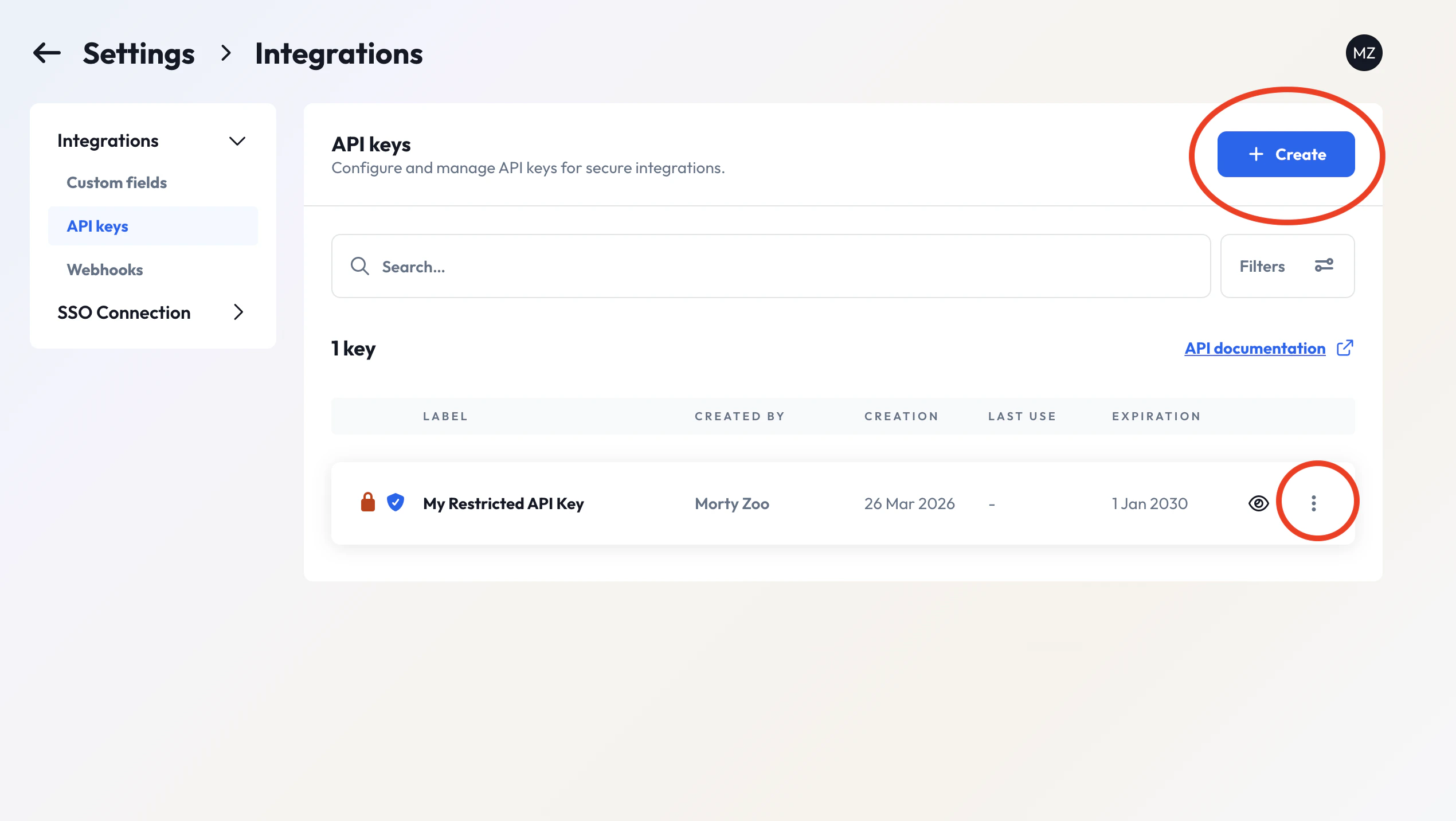
2
Fill in the key details
Click Create API Key and fill in a Label, an optional Description, and an optional Expiry Date for your key.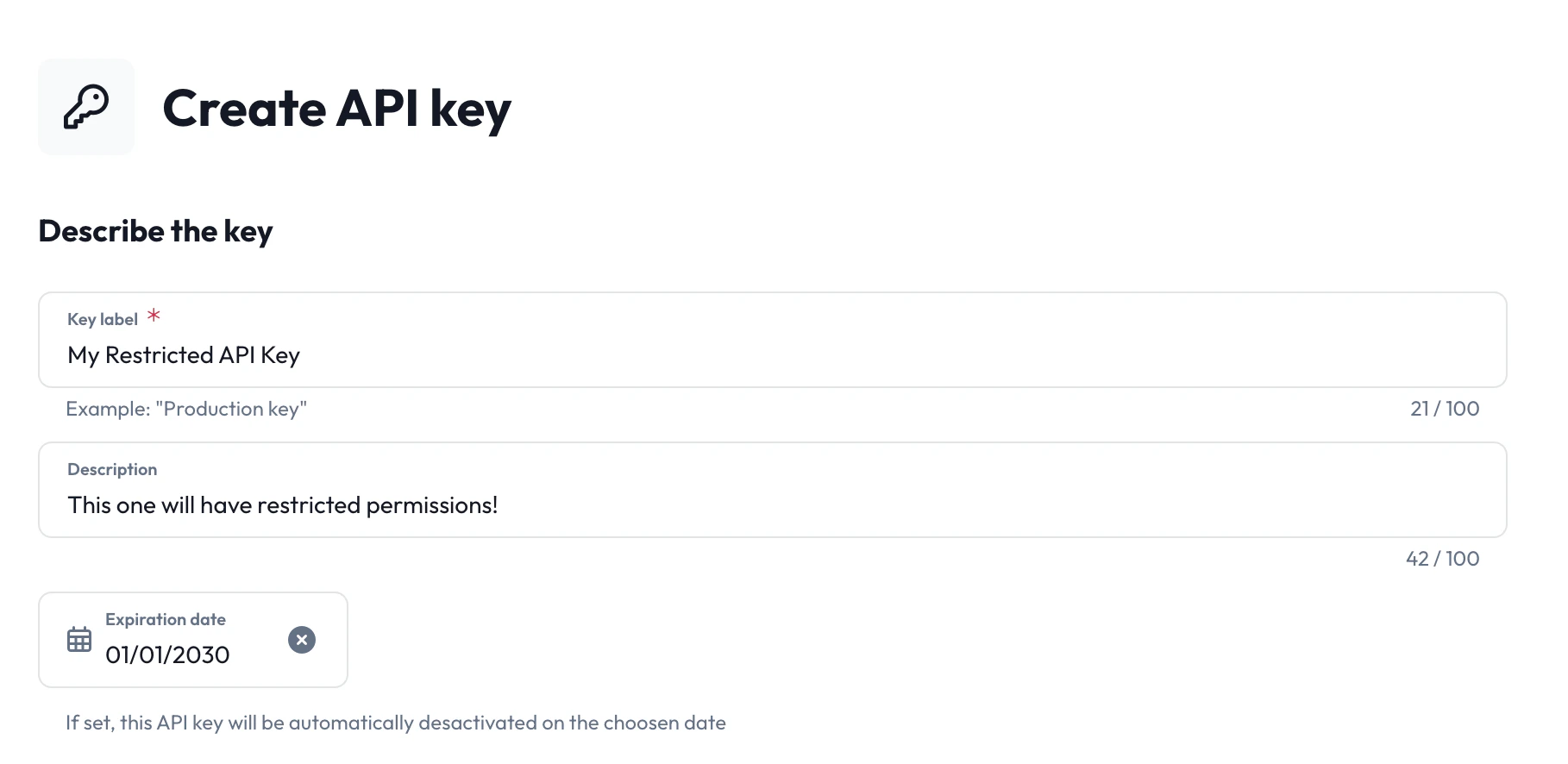
3
Enable restricted permissions
Enable the Restricted Permissions toggle, then select the specific permissions you want to grant to this key.
4
Save the key
Click Save to create the key.
Using the REST API
When creating or updating an API key, include thehas_restricted_permissions and permissions fields in the request body.
For more information, see:
How to Use API Keys Securely
1
Apply the Principle of Least Privilege
Create API keys with only the permissions needed for their specific, intended usage.(See Using API Keys With Restricted Permissions above for more details.)
2
Store Keys Securely
Use environment variables or a secret manager to avoid hardcoding your API key.
3
Never Expose Keys in Client Code
Do not include your API key in any public frontend source (JavaScript, mobile
apps, etc.).
4
Proxy Frontend Requests
For frontend use cases, route requests through your own backend. The backend appends the API key securely and forwards the request to the Partoo API.Please refer to our How to Display Partoo Data guide for a detailed example.